Using the PSPHost for Bitrix CMS plug-in
This section describes how to use the PSPHost plug-in version 1.0. The plug-in allows you to perform payments by using PSPHost payment solutions on the sites based on Bitrix CMS. Small Business, Business, and Enterprise revisions are supported.
Operation workflow
Payments are processed by using the PSPHost payment page.
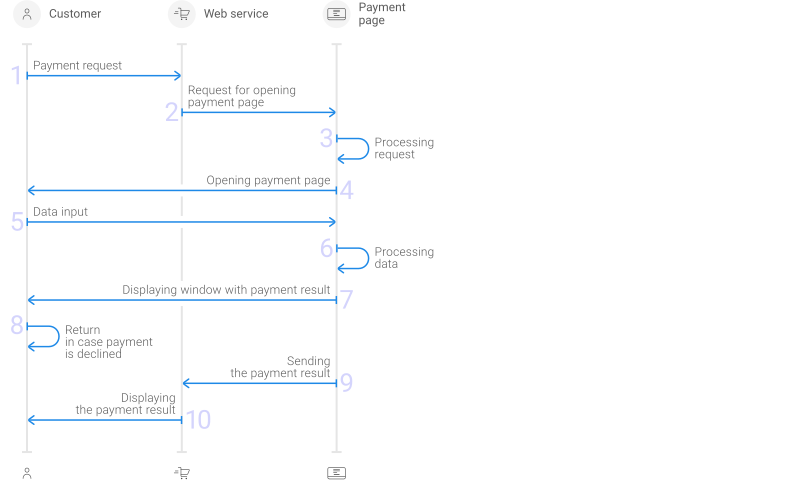
Request for opening the payment page is automatically generated by the plug-in when PSPHost is selected as the payment method.
If the payment is declined, the customer may re-enter the data on the payment page.
Upon receipt of the payment result, a callback is sent back to the merchant site. The callback is processed by the plug-in automatically. The status of the order changes depending on the payment result. The correspondence between payment results and order statuses of the order is configured in the Bitrix CMS settings.
Installing and setting up
Installing the plug-in
To install the plug-in, do the following:
- Download file with the PSPHost plug-in here.
- Open Bitrix CMS.
- Select .
- Add a
psphostfolder inside thebitrix/modulesfolder. - Select .
- Click the Install button next to PSPHost.
Once the plug-in is installed, its status changes to Installed.
Callbacks
To automatically change the payment status of the order, you need to set up receiving callbacks from PSPHost.
To set up receiving callbacks:
- Add a
PHPfile into the following section: .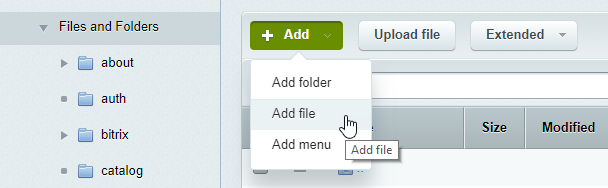
Copy the following code to the PHP file:
<? $APPLICATION->IncludeComponent(
    "bitrix:sale.order.payment.receive",
    "",
    Array(
        "PAY_SYSTEM_ID_NEW" => "7"
    )
);
?>
The
PAY_SYSTEM_ID_NEWparameter is the ID of the PSPHost payment system in the Bitrix CMS. You can find this ID in the following section: . - Give the PSPHost technical support the URL you will use to receive callbacks.
If you place the
psphost.phpfile into the root directory of your site, the URL for receiving callbacks will look like this:https://<full_domain_name>/psphost.phpIf the
psphost.phpfile is located not in the root directory of your site, the URL for receiving callbacks will look like this:https://<full_domain_name>/<directory>/psphost.php
Testing
Once the plug-in is activated, you can use the test mode. With the test mode, you can learn how to use the plug-in without making actual payments. The test mode will allow you to configure and test the plug-in, perform test orders, and view order information. When running in test mode, the payment page displays the corresponding warning.
Configuration
- Check module status in the following section: . The status must be Installed
- Select
- Select
PSPHostin the dropdown list and click Modify - Configure the required settings. See below for details
- Select Yes in the Test mode box
- Click Save
- Parameters that govern how the PSPHost payment page is displayed:
- Display the page of selecting a payment method—configure the payment method selection page
- Additional params—additional parameters of the payment page.
A list of these parameters is available here. When specifying these parameters, select Value. To specify two or more parameters, use "&" as separator
- Terminal language—the language of the payment page. Select Value, and then enter the language code according to ISO 639-1 alpha-2
- Parameters Project ID and Secret salt are required to communicate with PSPHost payment solutions. These parameters are not used in the test mode.
Making test orders
Once the parameters of the plug-in are configured, you can make test orders on the site and check the orders information in Bitrix CMS in the section.
Launching
Once you done with testing the plug-in by using all the payment methods you plan to use, switch to production mode. To do so, you need to get all the information required for the production mode and configure the plug-in settings accordingly.
Receiving the parameters for the production mode
To receive the parameters to integrate with the PSPHost payment solutions, do the following:
- Contact PSPHost technical support and provide the following parameters:
- The site name and site URL
- The payment page currency
- The URL to receive callbacks
- Receive from PSPHost technical support the following parameters:
- Project ID—site identifier
- Secret salt—secret key that is generated for a particular merchant in the PSPHost processing system
Configuring the operational parameters
- Open Bitrix CMS
- Select
- Select PSPHost and configure the operational parameters:
- Select No in Test mode
- Enter values for Project ID and Secret salt which you received from PSPHost technical support
- Make sure that the remaining parameters are set as required
- Click Save.
Using
Once the plug-in is launched, it operates autonomously.
We recommend that you control orders by reviewing the information in the section; also make sure that order numbers are unique within the site. The payment page would not open for duplicate order numbers.
If you need to temporary switch the plug-in back to the test mode, pay close attention to how the payment method is displayed on the site. If Yes is selected in the Test mode, currently used payment method is displayed on the site, however all the payments will be processed as test payments. Watch the warning message about test mode shown on the payment page.
Before you switch the plug-in back to the production mode, make sure that the Project ID and Secret salt boxes are populated with the values obtained from the PSPHost technical support.
If you have any further questions regarding the plug-in operation, contact PSPHost technical support at support@psphost.com.